
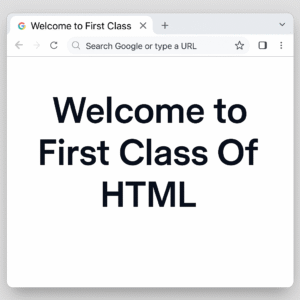
Try it Your self
<!DOCTYPE html>
<html>
<head>
<title>My First Web Page</title>
</head>
<body>
<h1>Welcome to First Class Of HTML </h1>
</body>
</html>
model no 01: what is html?
Your First Steps with HTML
Ever wondered how websites are built? The secret behind every page you see online starts with something called HTML. It’s the basic building block of the web. If you’re curious about creating your own websites, this is the perfect place to begin. We’ll guide you through the basics of HTML, from what it is to creating your very first web page!
What is HTML? (And Why Should You Care?)
Imagine a house. Before you add furniture, paint, or decorations, you need a basic structure, including walls, a roof, and rooms. HTML is just like that for a website.
HTML stands for HyperText Markup Language. It is not a programming language; it is a markup language that tells your web browser what content is on a page and how it is arranged. For example, it informs the browser: “This is a heading,” “This is a paragraph,” “This is an image,” or “This is a link.”
Why should you care? Because HTML is the foundation of all websites. If you want to build anything on the web, learning HTML is your essential first step!
Your Essential Tools: Text Editors and Browsers
To write a code we need a text editor, You can use simple programs like Notepad (Windows), TextEdit (Mac). But for beginner we will suggest following two Text Editors that you can use for writing an HTML code.
- Sublime Text 3 (Highly recomended for beginners)
- Visual Studio Code
This is how you'll see the output of your HTML code. For this purpose we can use Chrome, Firefox, Edge, Safari – any of these browsers. But we'll recommend you to use Chrome Browser.
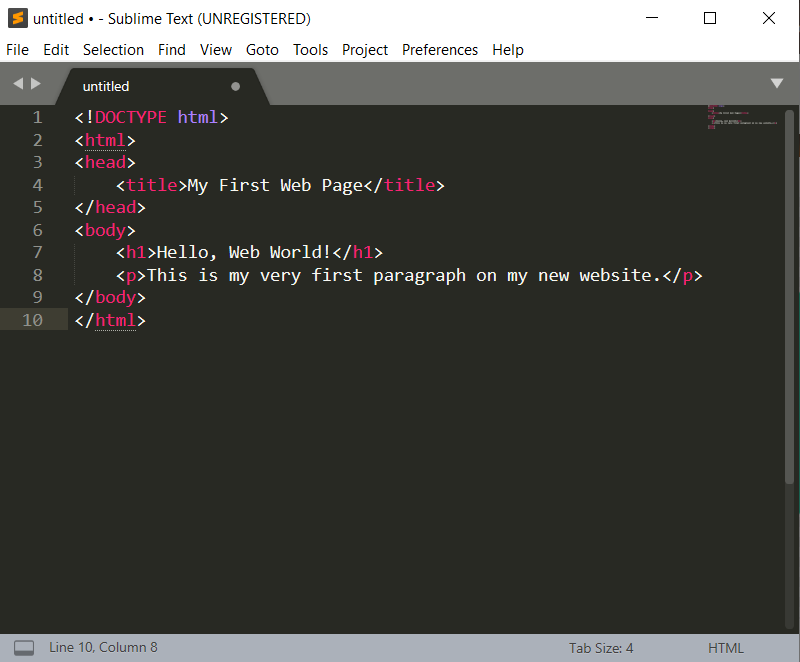
Let's Create Your Very First HTML Code!

Download Sublime Text 3 by clicking here. After Downloading Open Sublime Text 3 editor and Add the following code in text editor.
<!DOCTYPE html>
<html>
<head>
<title>My First Web Page</title>
</head>
<body>
<h1>Hello, Web World!</h1>
<p>This is my very first paragraph on my new website.</p>
</body>
</html>
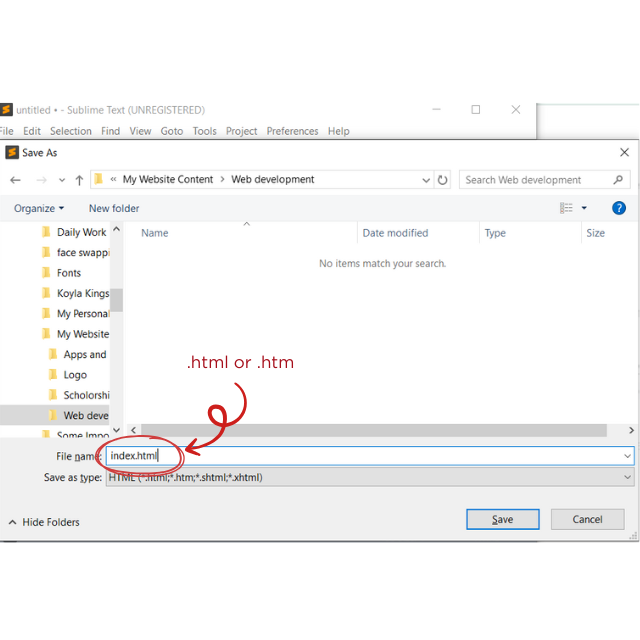
Go to
File>Save As...in your text editor.Choose a location you'll remember (like your Desktop or a new folder called
my_websites).THIS IS IMPORTANT: Give your file a name and end it with
.html. For example:myfirstpage.htmlorindex.html. The.htmlpart tells your computer it's a web page.Make sure the "Save as type" or "Format" dropdown is set to "All Files" or "Plain Text" if you're using a basic editor like Notepad, otherwise it might save as a
.txtfile by mistake.
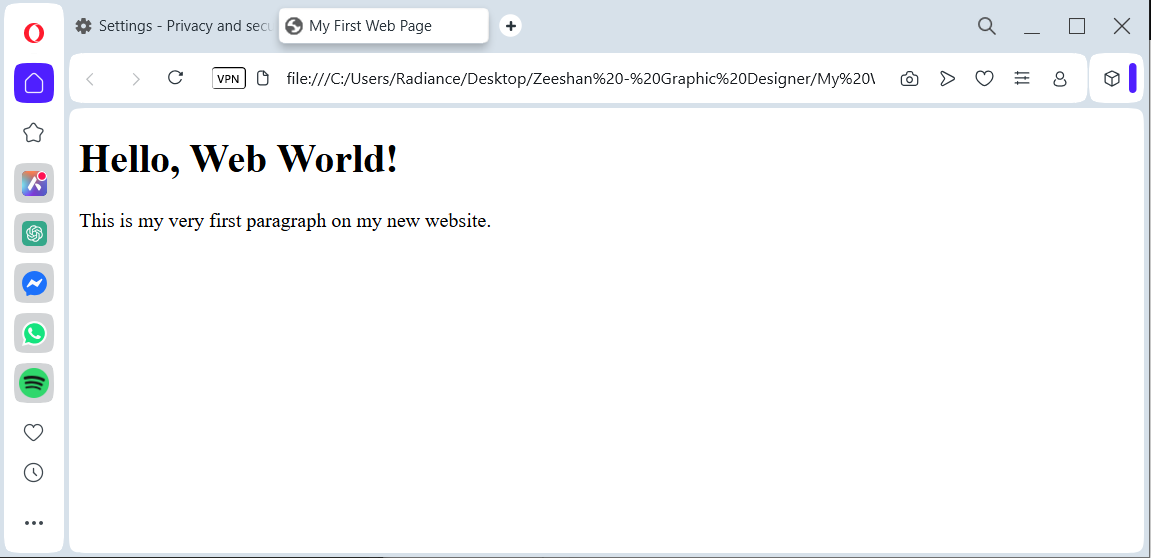
Go to the folder where you saved your
index.htmlfile.Double-click the file! It should automatically open in your default web browser, and you'll see "Hello, Web World!" and your paragraph!

Congratulations! You've just created and viewed your very first web page! 🎉 This is just the beginning of your exciting journey into web development. Stay tuned for more lessons on building amazing websites!
Understanding the Basic HTML Page Structure
Let’s break down the code you just wrote. Every standard HTML page has a basic “skeleton”:
<!DOCTYPE html>:
This line simply tells the browser that this is an HTML5 document (the latest version). It always goes at the very top!
<html> ... </html>:
This is the root (or main) element of your web page. Everything else on your page goes inside these <html> tags. Think of it as the boundary of your website.
<head> ... </head>:
This section holds information about the web page, but not the content you actually see.
<title>My First Web Page</title>:
The text inside <title> appears in the browser tab or window’s title bar. It’s very important for bookmarks and search engines!
<body> ... </body>:
This is the most exciting part! Everything you want to see on your web page (text, images, links, videos) goes inside the <body> tags.
<h1>Hello, Web World!</h1>:
<h1> stands for “Heading 1” – the largest and most important heading.
<p>This is my very first paragraph...</p>:
<p> stands for “paragraph.”